

With the proliferation of multi core processors, many home computers are capable of running powerful 3D programs such as Google Earth, NASA World Wind, Blender, Maya, Google SketchUp and others. Using a regular mouse with these programs requires additional inputs either with the keyboard or interfacing with on screen commands. 3DConnexion , a Logitech subsidiary, have released a portable version of their SpaceNavigator mouse line. The SpaceNavigator for Notebooks weighs in at a little over ½ pound and is portable enough to be easily packed in a laptop bag. What makes this 3D mouse different from other mice, is that it allows you to work in the X,Y and Z planes, allowing simplified navigation in a 3D environment.
So, if you are a 3D designer or an enthusiast, let’s see if the SpaceNavigator for Notebooks is the right mouse for the job. Let’s get started …….
SpaceNavigator for Notebooks
Reviewed by: Tomas Ratas
Sponsor: Logitech /3DConnexion
Tech Specs,Features or the Basic Info:
Why Choose SpaceNavigator?
-A precision 3D mouse you can take with you
-Smaller footprint, lighter weight for use anywhere
-New cap design for more comfort and more natural interaction
-Two-button layout simplifies control
-Travel case for effortless transport
Now a precision 3D mouse you can take with you!
Compact and ultra-light, SpaceNavigator for Notebooks is the perfect travel companion for 3D designers and enthusiasts.
3D portability
Designed for mobile professionals and enthusiasts, the compact SpaceNavigator for Notebooks is only half the weight of its desktop counterpart. A small footprint makes it easy to use-even on airline trays-and a travel case makes transport effortless.
New, improved design
A new cap design increases comfort while making interactions with your 3D world more natural and immersive. The two-button layout simplifies control.
Universal compatibility
SpaceNavigator for Notebooks works with all your favorite 3D applications on Windows, Mac OS X, Linux, or UNIX. Power dynamic 3D presentations with Adobe Acrobat or Adobe Reader. Build highly detailed models in CAD applications such as Autodesk Inventor or SolidWorks. Explore rich 3D scenes or worlds in Second Life, Autodesk 3ds Max, Autodesk Maya, Google Earth, NASA World Wind, or Microsoft Virtual Earth.
Specifications:
-Advanced 6 degrees-of-freedom optical sensor
-Speed adjustable to preference
-2 programmable function keys
-Weight: .55 lb.
-Length: 2.5 in.
-Height: 1.7 in.
-Width: 2.5 in.
-2-year warranty
System Requirements
Windows:
-Intel Pentium 4/III or AMD/Athlon processor based system
-140 Megabytes free disk space for driver and plug-in installation
-USB 1.1 or 2.0
-Windows Vista 32-bit or 64-bit
-Windows XP SP2, x86 or x64
-Windows 2000 SP4
Macintosh
-Dual-Core or Core Duo processor based system, 512MB RAM
or 1Ghz G4 or higher, 512MB RAM
-10 MB available hard disk space for driver and plug-in installation
-USB 1.1 or 2.0
-Mac OS X 10.4.6 or later
Linux
-Linux (Redhat Enterprise Linux WS 3, SuSE 9.0 or greater)
Price: $129.00 US
{mospagebreak title=A Better Look at things}
A Better Look at Things
:
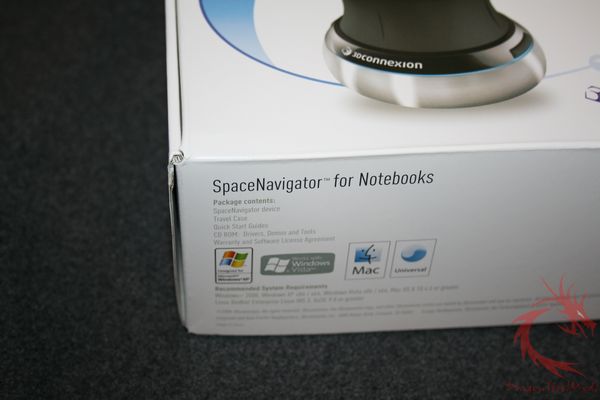
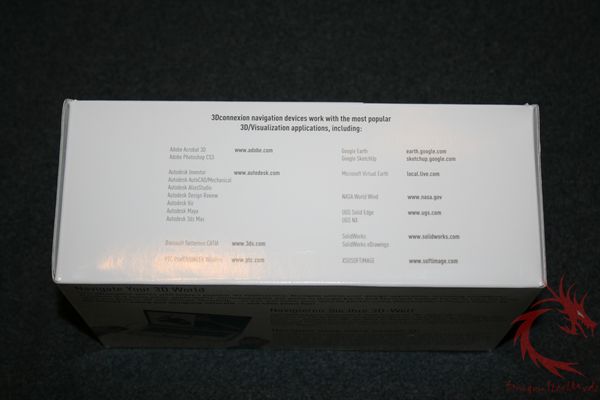
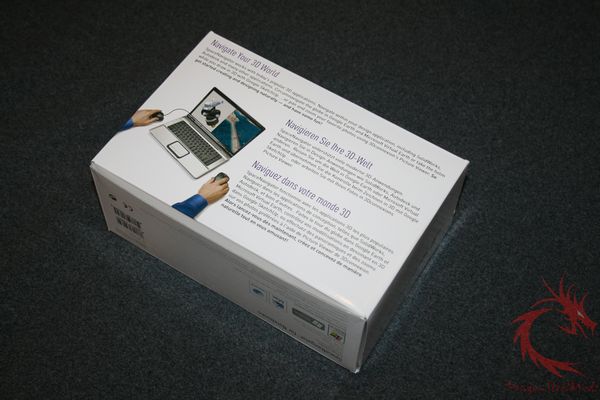
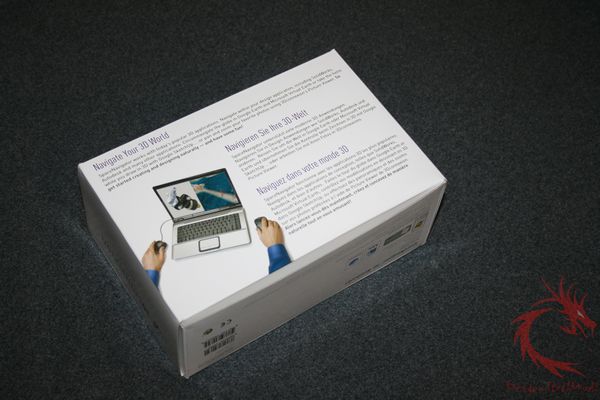
The SpaceNavigator for Notebooks arrives in a white box with a picture of the 3D mouse on the front. The sides of the box feature the 3DConnexion logo. On the front flap, one finds the package contents, system requirements and system compatibility, the back panel lists some of the more popular 3D applications that the SpaceNavigator for Notebooks is compatible with. Finally on the bottom of the box, one finds a picture of a laptop used in conjunction with the 3DConnexion and a multilingual summary of the product.
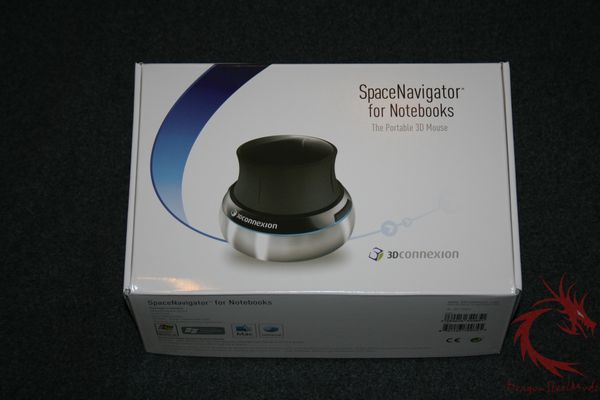
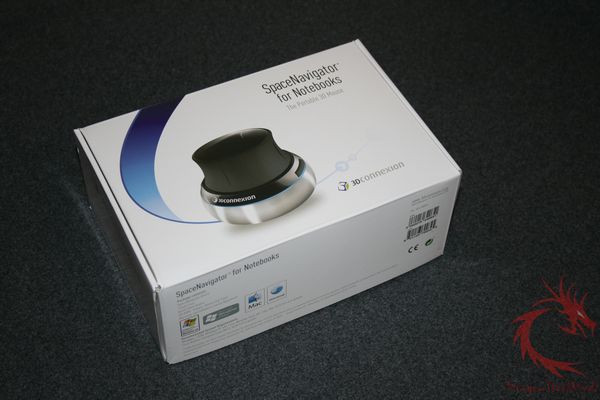
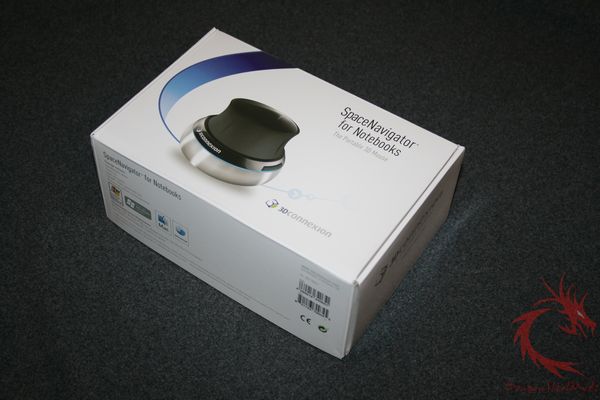
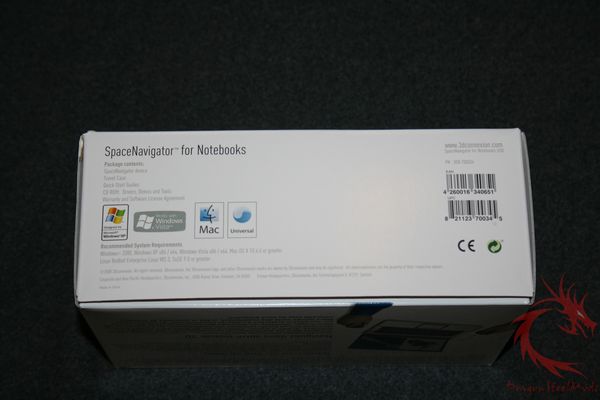
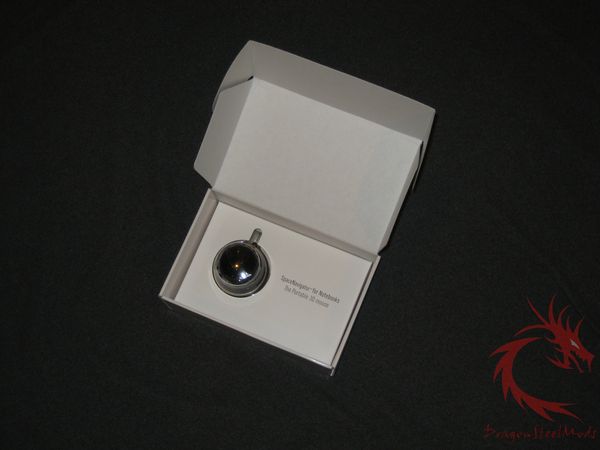
Upon opening the box, one sees the SpaceNavigator for Notebooks protected by a plastic covering attached to another white cardboard package with the slogan: “SpaceNavigator for Notebooks, The Portable 3D Mouse”.
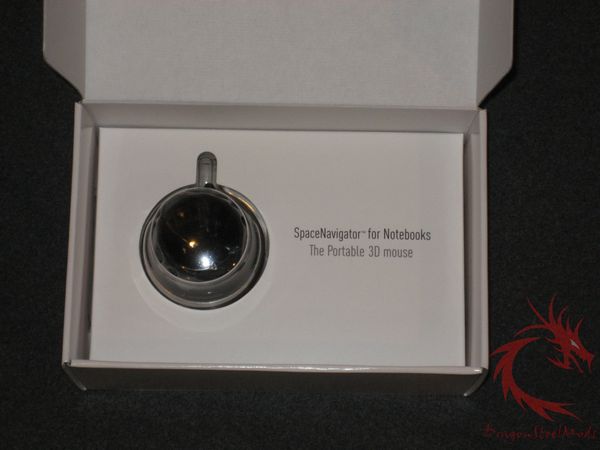
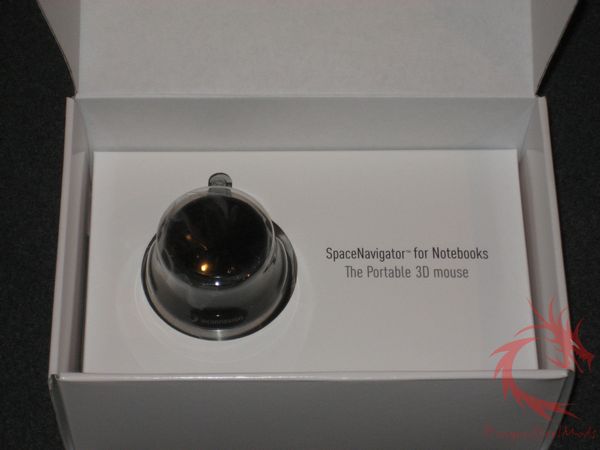
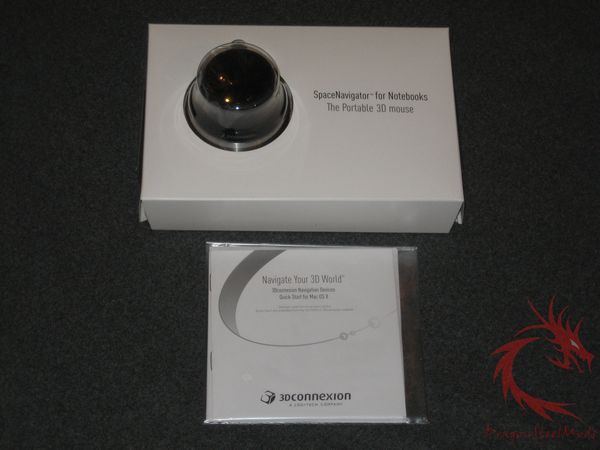
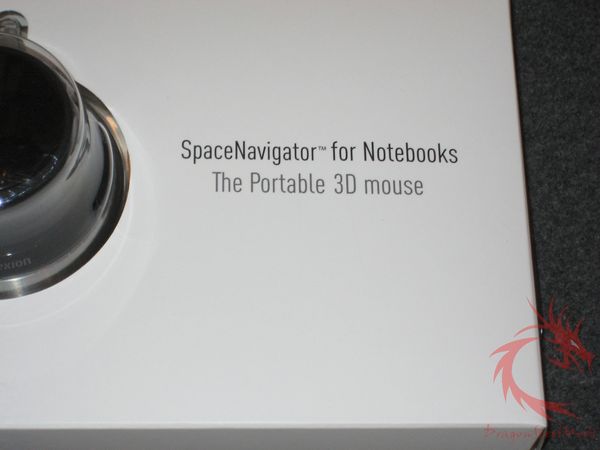
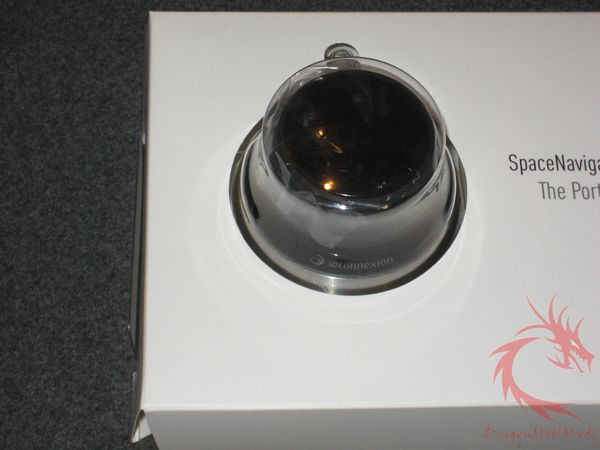
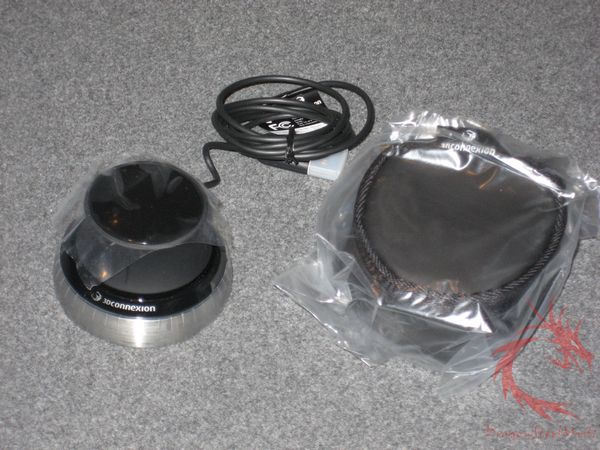
Below this packaging is an installation CD and instructions for Linux, Windows and OS X. Opening the internal cardboard package reveals a plastic clamshell closure, which holds the mouse and a carrying case.


{mospagebreak title=
A Better Look at Things
-Continued}
A Better Look at Things
-Continued:
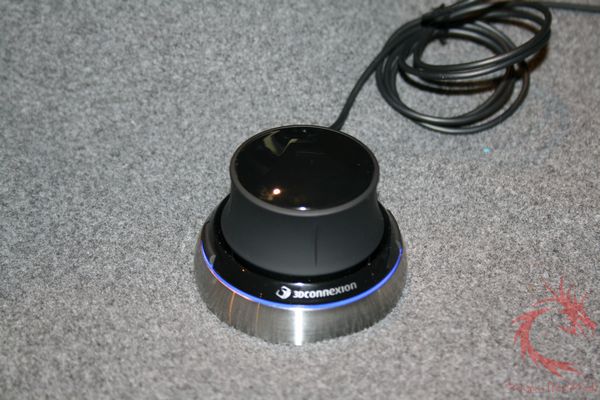
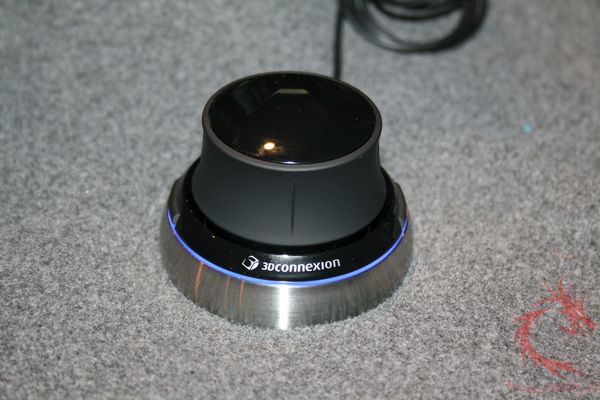
The SpaceNavigator for Notebooks has the appearance of a black knob. It weighs in at 0.55 pounds, measures 2.5” x 1.7” x 2.5”, the weight allows the knob to be pulled upward without leaving the desktop surface. The top of the SpaceNavigator is a shiny piano black finish and the circumference of the knob is a black rubbery material.
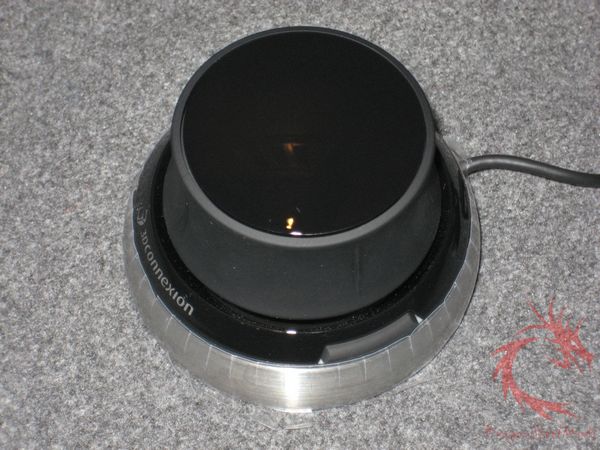
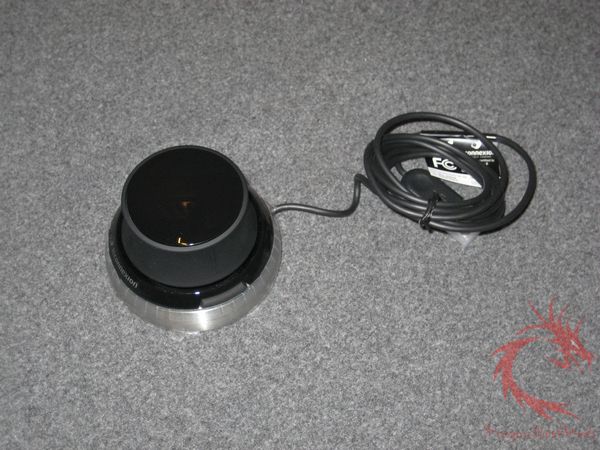

Below this rubbery knob, is another piano black colored ring with the 3DConnexion logo in the front and two programmable side buttons.
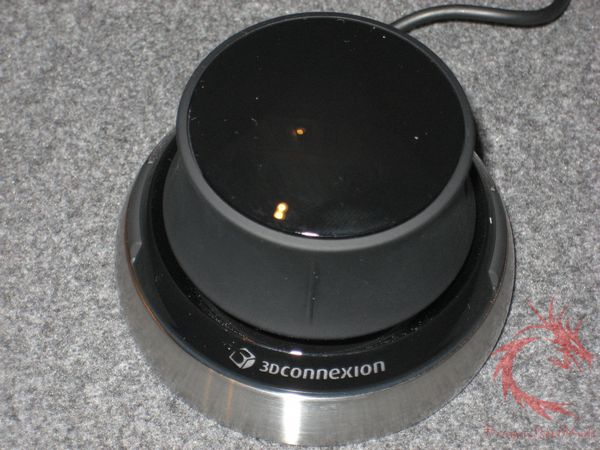
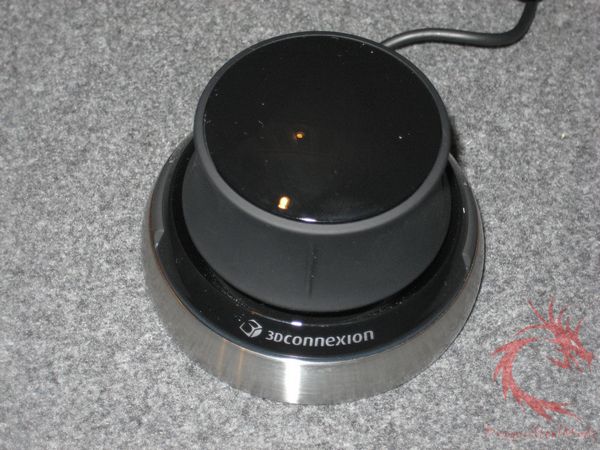
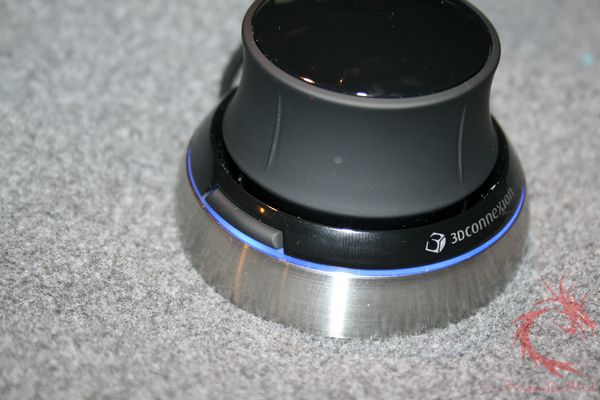

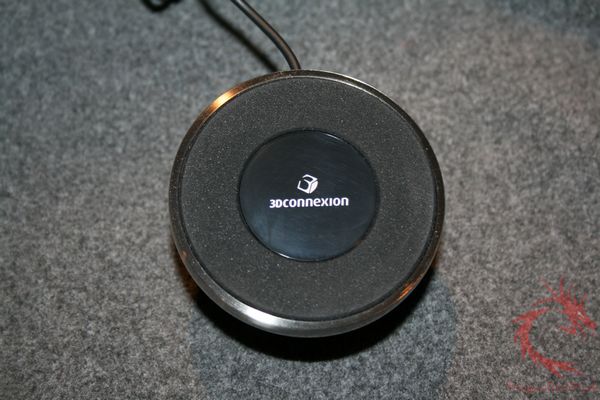
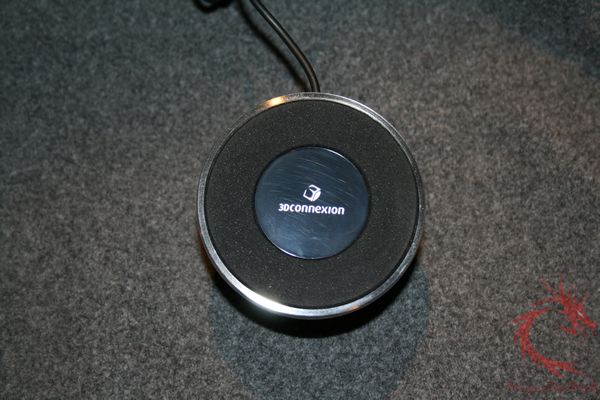
Finally, there is a silver ring at the base that has the USB cable emerging from the front of the mouse. The bottom of the SpaceNavigator for Notebooks has a rubbery grip to keep the 3D mouse from sliding during use.

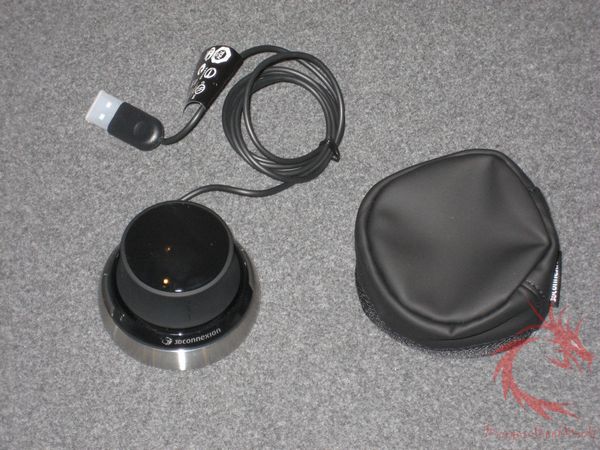
Since this is a portable device, 3DConnexion’s provides a carrying case made of a nylon material. This pouch closes with a zipper and has the 3DConnexion logo on a cloth tag.


Installation, Testing and Comparison
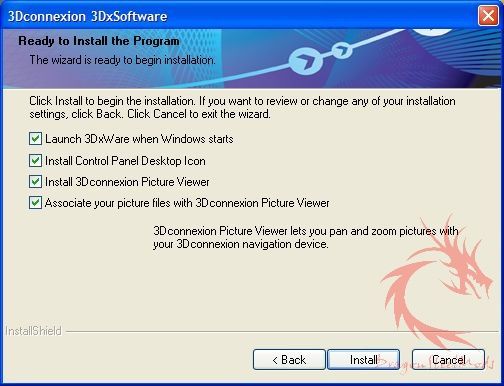
Installation of the SpaceNavigator for Notebooks involves installing the drivers for any OS, since the 3D mouse does not work natively without driver support.
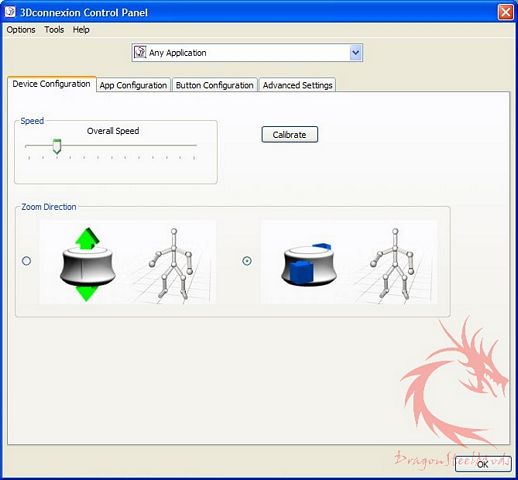
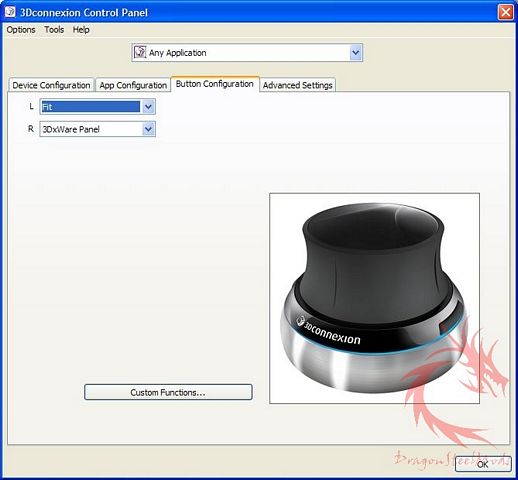
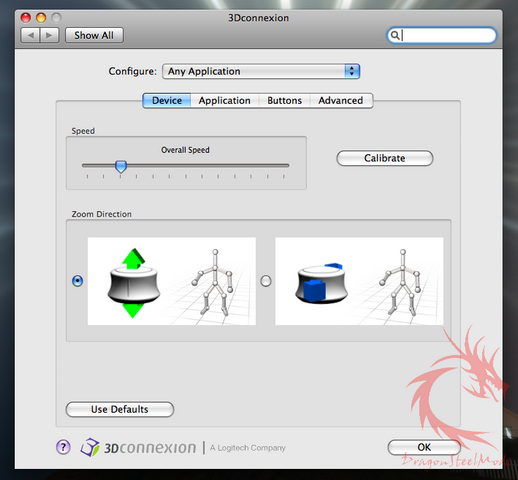
For testing, I installed the 3DConnexion mouse to my MacBook Pro and my PC Desktop, once the install software is run, you can modify the settings for the SpaceNavigator for Notebooks in the System Preferences Pane under OS X or through the 3DConnexion Control Panel.
Configuration options include Device, Application, Buttons and Advanced Settings. The Device tab allows for speed adjustment, calibration and Zoom Direction. Under the Application tab, one can enable Pan/Zoom, Tilt/Spin/Roll, Reverse Axes or set the knob to work in only 2 dimensions. The Buttons tab allows for customization of the two side buttons. Finally, the Advanced tab allows the individual axes’ speeds to be adjusted and movements to be reversed.
Here are pictures of the PC version.




Here are some OS X pictures.
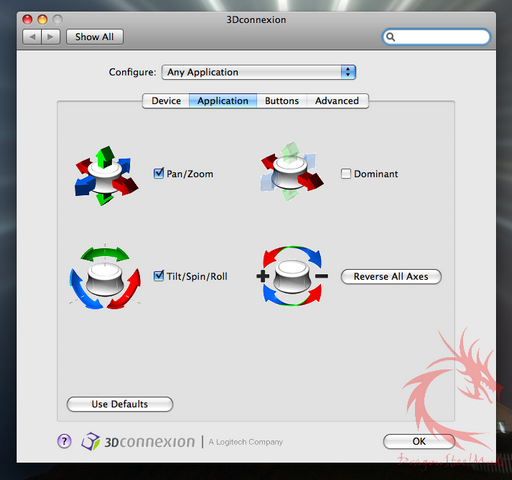
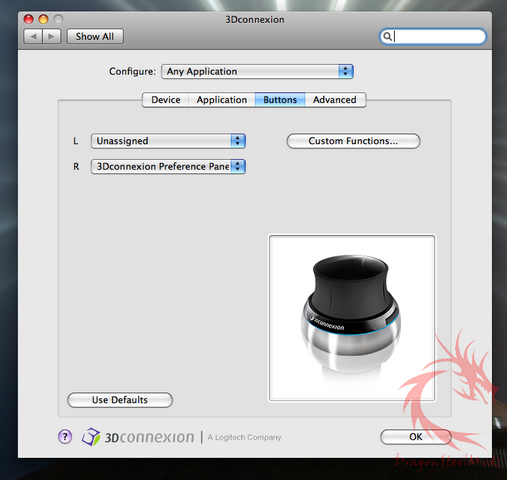
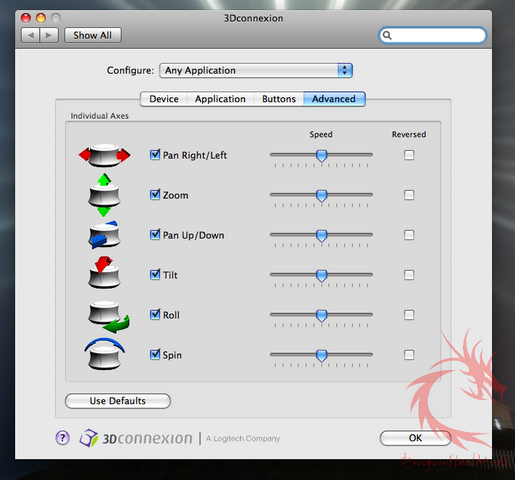
Once the settings are set to ones specifications, the SpaceNavigator for Notebooks is ready for use.
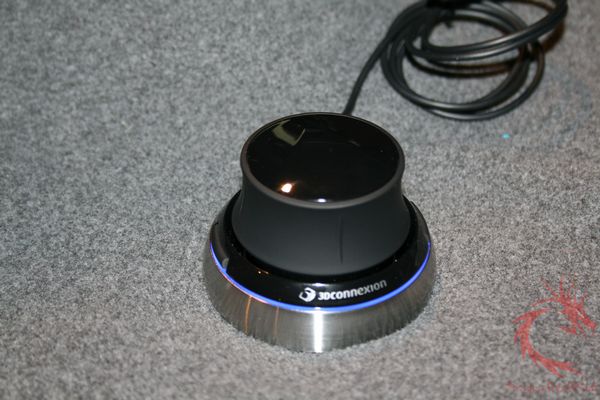

The way you manipulate the SpaceNavigator for Notebooks affects how one navigates in the 3D environment. For instance, zooming in or out involves pulling or pushing the knob. Moving it to the sides, allows one to pan in the direction of pressure. Twisting the knob will cause the 3D object to rotate, tilting the mouse tilts the on-screen object.
When you are used to operating a mouse in a two dimensional plane, getting accustomed to working in three dimensions does involve a learning curve. It is not uncommon to combine movements, for instance when panning, I had a tendency to zoom. If you wish to zoom out quickly, there is the possibility for the mouse to lift off the table.
Once the drivers and software are installed, you will need to run the Update Wizard under Tools to get the plug-ins functioning for different 3D Applications. It took me a little while to figure that out when I installed Google SketchUp and could not get the SpaceNavigator for Notebooks to move the 3D objects.
In my usage, other programs took longer for me to acclimate to the device, for instance Google SketchUp was much trickier to navigate than Google Earth. Some programs involve tailoring the 3D mouse settings so that navigation feels more comfortable. It is all based on personal preference.
Although there are many 3D programs available, which interact with the SpaceNavigator in Windows, the selections for OS X and Linux are more limited. Luckily, the programs available for the Mac include some big names such as Acrobat Reader, Photoshop CS2 and Photoshop CS3, Google Earth, Maya, Blender and Google Sketchup.
Another exciting feature of the SpaceNavigator for Notebooks is that it will support Second Life, making navigation in that virtual world, more seamless.
When you are done using the SpaceNavigator for Notebooks, just pack it into the carrying case.
Summary:
Overall, the SpaceNavigator for Notebooks is an excellent device to have in your arsenal if you are a 3D designer or an enthusiast, just keep in mind that there is a learning curve involved.
The SpaceNavigator for Notebooks is the travel enabled version of the Space Navigator and packs all of its features in a lighter, more portable package.
One possible complaint is that the SpaceNavigator for Notebooks runs $129, while the SpaceNavigator PE costs $59, however the SpaceNavigator PE does not have a professional license.
3DConnexion offers, the SpaceNavigator SE for $99, which includes the professional license, which provides added support.
The SpaceNavigator for Notebooks include this professional support, so the price difference is truly $30. It seems, for the luxury of portability, one must pay a small premium.
DragonSteelMods gives the SpaceNavigator for Notebooks a 4 out of 5 score.

Pros:
– Allows simple manipulation of 3D objects
– Excellent design
– Works with Second Life
– Elegant Appearance
Cons:
– Lifts off the desk with quick zoom out
– Price
– Only works with supported 3D Applications
I would like to thank Logitech /3DConnexion for the chance to review the SpaceNavigator for Notebooks and for their support of DSM.
review#435